Requirement change history
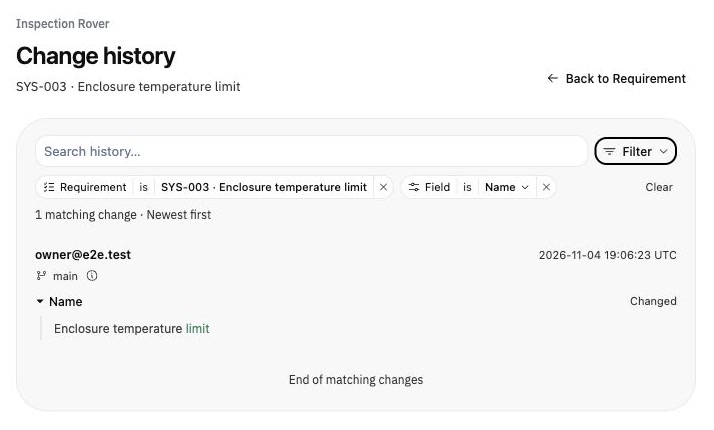
Select a requirement and open Change history in the Right Sidebar to review recorded edits, their author, and their before-and-after values. Filter by person, field, branch, or time. Open full changelog expands the review; Settings → Changelog opens the model-wide view.
This history covers recorded requirement changes, including across regions. It does not backfill edits made before recording was available. Read the guide.
Model variants
Create independent design alternatives within a model group. Use the variant switcher to copy an existing variant, choose a source branch or saved version where Version Control is enabled, and switch between alternatives. Each variant has its own content, branches, and version history; later edits are not synchronized between variants.
Import and export hazard registers
Open Hazards → Import to bring in CSV or Excel records. Download the template, review the preview, then choose Import hazards. Imports add records while leaving existing hazards unchanged. Export CSV downloads the current filtered, ordered register, including recorded control actions.
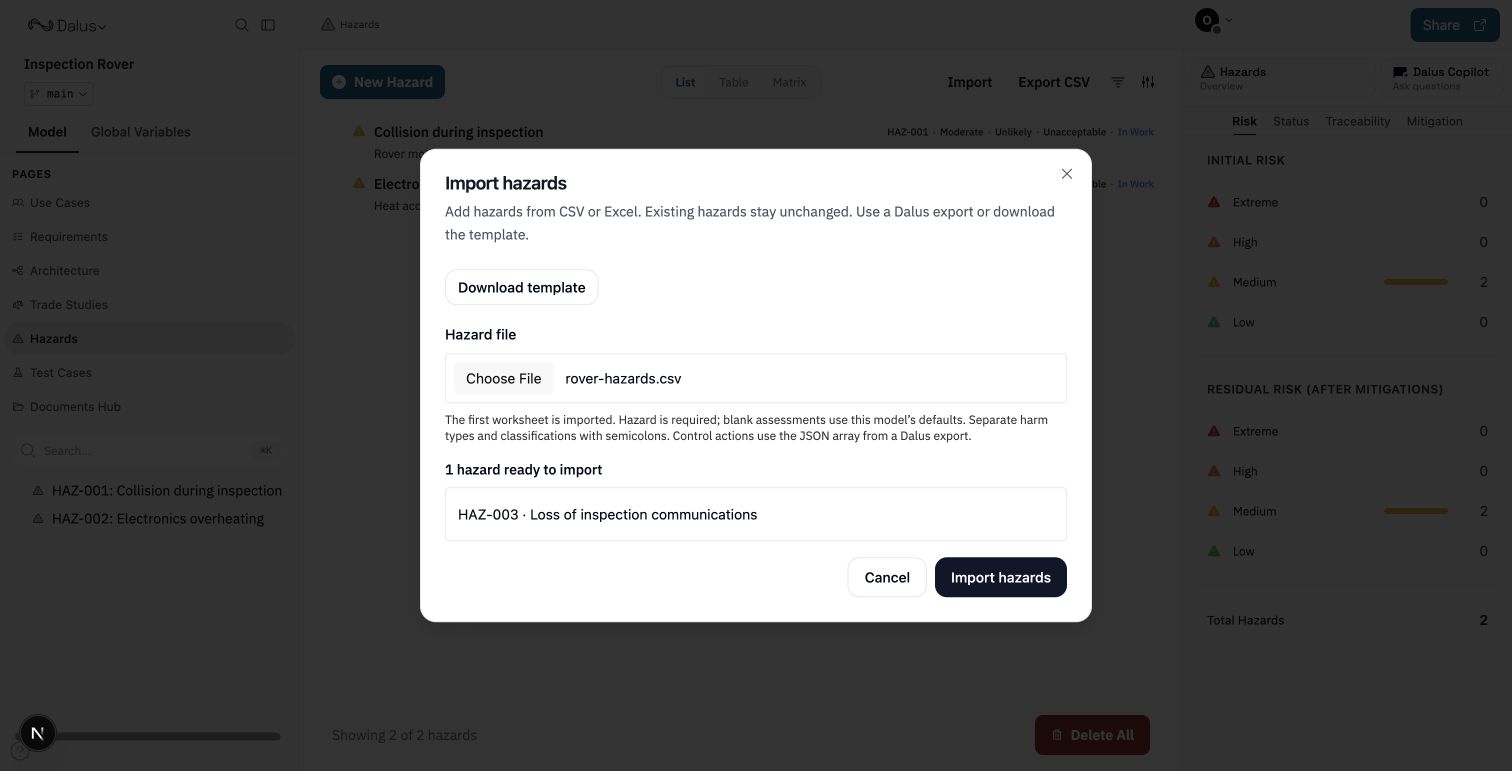
See hazard import and risk review.
Custom roles and model access
Enterprise teams can define responsibilities with team permissions and per-model access. Open Members → Manage Roles to create a role, then assign it through Members. Delegate role administration with Manage roles and member assignment with Manage members; the permissions you can grant are limited by your own access.
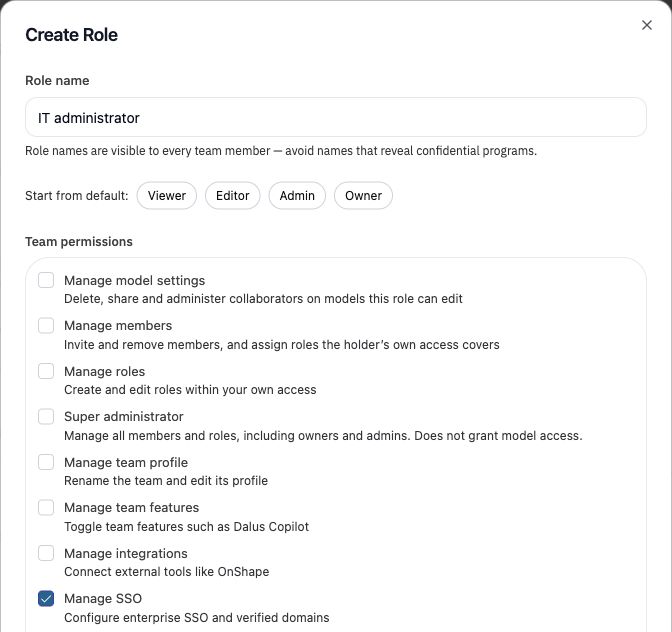
Restricted models use explicit access grants. Administrative permissions can be separated from model editing. See Custom Roles for subscription, license, and access details.
Improvements
- Hazard IDs are editable. Select a populated Matrix cell to inspect its hazards; filters distinguish initial and residual assessments.
- Requirements tables support more editable details and relationship fields, custom-property columns, heading-based sorting, and Shift/Cmd/Ctrl selection. Search includes custom-property values. Explore the table and filters.
- Requirements, Hazards, and Test Cases share editable filter chips, making active criteria easier to inspect and adjust.
- Part Library is available to every team. Saved definitions preserve subpart layout and show a live sub-element count; library changes follow role permissions.
- Copilot respects applicable team rules and manually set verification statuses. Team Admins and members with Manage Copilot library can manage skills and rules. Attachments support more CSV encodings and Word/Excel chart content.
- On deployments with background processing, accepted Copilot turns, attachment processing, action runs, and PDF requirement imports can continue beyond the initiating page. Return to the relevant workflow to check the result or error. See Copilot and PDF import.
- Action result tables provide search, sorting, pagination, expandable cells, and CSV download. Oversized output produces clearer limit feedback. Documents Hub improves browsing larger spreadsheets.
- Onshape adds document and context browsing, visible source details, and clearer sync failures. Personal authorization is available where enabled; connection methods depend on deployment. See Onshape.
- For hosted teams with Jira Cloud enabled, requirement counterparts synchronize mapped fields and separate Jira Tasks links track implementation. Setup includes project and field mapping plus each editor’s personal authorization. See Jira Cloud.
- Version Control Settings is available from the branch menu. MCP clients can discover branches and must pass an explicit branch target for model-content operations. See MCP branch selection.
- On-premise deployments can use an administrator-configured, self-hosted model provider for Copilot. SSO enforcement follows the owning team rather than affecting unrelated teams.
- Large requirements graphs and everyday model navigation load more efficiently.
Fixes
- Requirement detail edits participate in undo and redo again. CSV round trips preserve lifecycle values and unit prefixes more reliably.
- Copilot prompts and unsaved edits survive early reloads more reliably, failed turns show errors, and background turns can save action scripts.
- Action runs preserve their inputs and outputs, recover from lost runs, and avoid a tab crash when a changed output is saved.
- Deleting connections, deleting multiple elements, and applying Copilot updates better preserve unrelated model data. Use-case messages keep their paired endpoints.
- Node images continue loading after replacement, model copying, and branch moves.
- Architecture auto layout preserves port ordering; invisible port anchors no longer intercept clicks on their parent. Resizing sidebars keeps the canvas view stable.
- MCP sign-in supports loopback callbacks and consistently requests consent.